
This guide is for signed-up members who book and take lessons. It covers the screens and actions you'll use most.
Dashboard
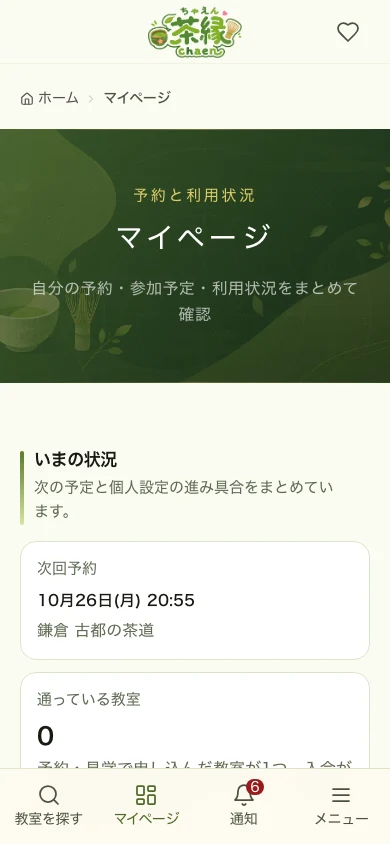
The dashboard is your home base after logging in. From top to bottom it gathers:
- Current status — your next booking, saved classrooms, and setup progress
- This month's season — the month's tea flowers, ro or furo, and sweets, with a link to the seasonal calendar in the practice log
- Lesson booking history — upcoming bookings and past lessons
- Attendance record — the lessons you have attended
- Pending reschedules — reschedule requests sent to approval-required classrooms
- Waitlists — the full slots you signed up for
- Upcoming events and event history
- Monthly plan — the plan you're on and your usage in the current month of the plan (counted from your sign-up date)
- Lesson passes — the lessons left on each pass and its expiry date
- Reminders — notes you create after a trial to think about your next booking
- After your trial — see enrolment and pricing for that classroom (or set a reminder to decide later)
Book a classroom
Seethe booking flow for the 8-step booking process with screenshots. If this is your first booking, we recommend reading it.
For the screen shown after a booking is complete, seeAbout the booking success screen too.
Check, change, or cancel a booking
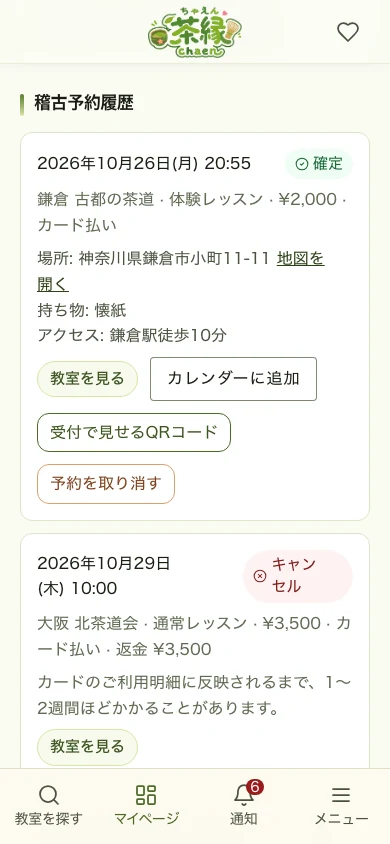
The dashboard — scroll down to see your bookings under "Lesson booking history"
The badge at the top right of each card shows the current status.
- Reviewing candidates — you sent candidate dates for a visit and are waiting for a reply
- Awaiting payment — card payment isn't finished. Pay from "Pay now" before the deadline or the booking is cancelled
- Awaiting approval — you requested a booking at an approval-required classroom
- Confirmed — the booking is settled
- Completed — you attended the lesson
- Declined — the classroom turned the request down
- Expired — the classroom did not reply before the deadline
- Cancelled — the booking was called off
The buttons below each card do the following.
- "View classroom" opens that classroom's detail page
- "Add to calendar" puts the lesson into Google Calendar or a similar app
- If online payment isn't finished yet, "Pay now" takes you to the payment step (the card also says so)
- "Request a reschedule" moves the booking to another open slot at the same classroom
- For confirmed bookings you can show a "Check-in QR" until 6 hours after the start time; your teacher scans it to record attendance
- A "Cancel" button appears for bookings that can be cancelled
- For a completed booking, use "Book again" to go to that classroom's booking screen (after a trial, use "View enrollment & pricing")
- For paid bookings you can open the "Receipt" and a "PDF"
- For online lessons, the join URL and passcode appear on the card
Using lesson passes & monthly plans
Some classrooms let you attend with a lesson pass or a monthly plan.
- Buying — in the pricing section of the classroom page, press "Purchase" for a lesson pass or "Apply for this plan" for a monthly plan. Payment is by credit card
- Lessons left and expiry — shown under "Lesson passes" on your dashboard. To book, use "Book with this pass"
- Used them all — buy again from "See this classroom's passes" on the same card
- Next renewal date and usage in the current month of your plan — shown under "Monthly plan" on your dashboard. Months are counted from your sign-up date, not by calendar month
- Changing your card or getting receipts — press "Change card / receipts" under "Monthly plan"
- Stopping — cancel from "Monthly plan". You can keep attending until the end of the current period
Check notifications
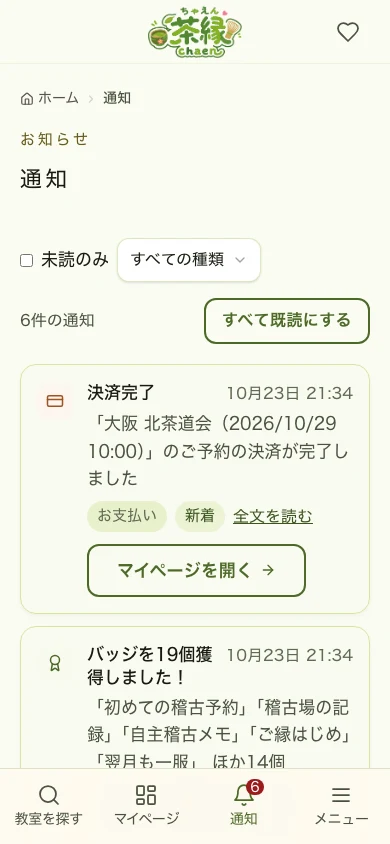
Notifications lets you receive booking confirmations and messages from classrooms. You can also open it from the bell icon at the top right of the screen.
Favorites
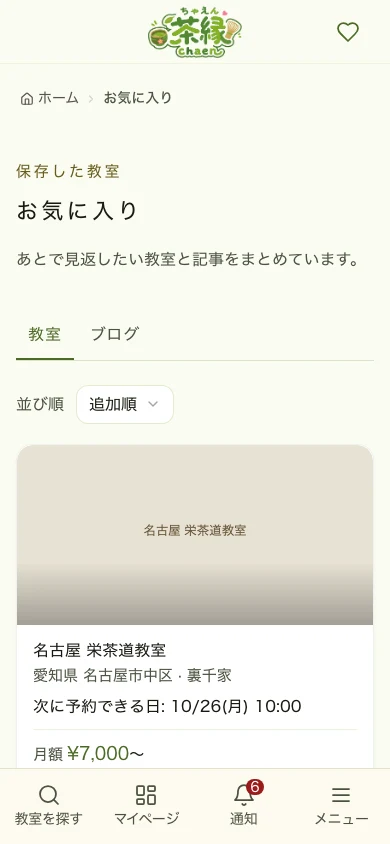
- Tap the heart icon on a classroom card to save it to your favorites
Keep a practice log
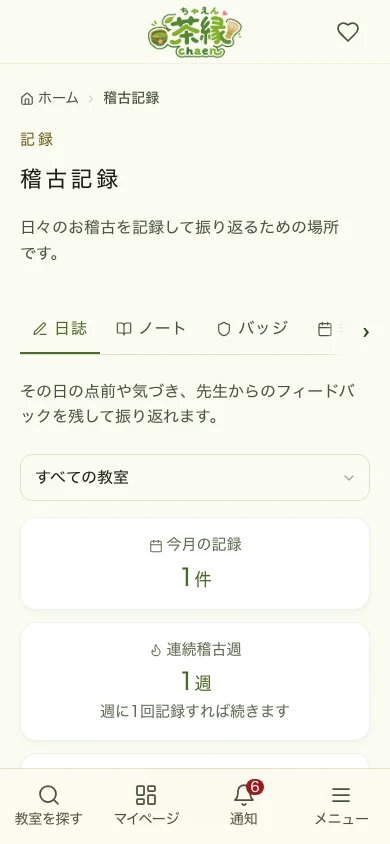
The practice log lets you record notes about your day-to-day lessons. Use the tabs at the top of the screen to switch between the practice journal, study notes, badges, and the seasonal calendar.
- Practice journal — record the temae, insights, and words from your teacher that day
- Study notes — organize free-form notes into folders
- Badges — check the streaks and milestones you've achieved
- Seasonal calendar — check seasonal flowers, events, and the ro/furo transition
Joining an online lesson for the first time
Online lessons take place on Zoom, a video-call service. You can join from a phone, tablet, or computer.
- By the day before, install the "Zoom" app on a phone or tablet (search "Zoom" in the App Store or Google Play). On a computer you can join from the browser without the app
- You join from the "Join online" button in the booking section of your dashboard, or from the email we send the day before. If a passcode is needed, it is shown in the same place
- Press the button 5–10 minutes before the start. You may see a waiting message until the teacher starts the lesson — just wait and it will begin
- If others can't hear you, check that the microphone icon at the bottom of the screen isn't crossed out. If you can't hear others, turn up your device volume
- If you can't get in, contact the classroom using the details in your booking
Join events & tea gatherings
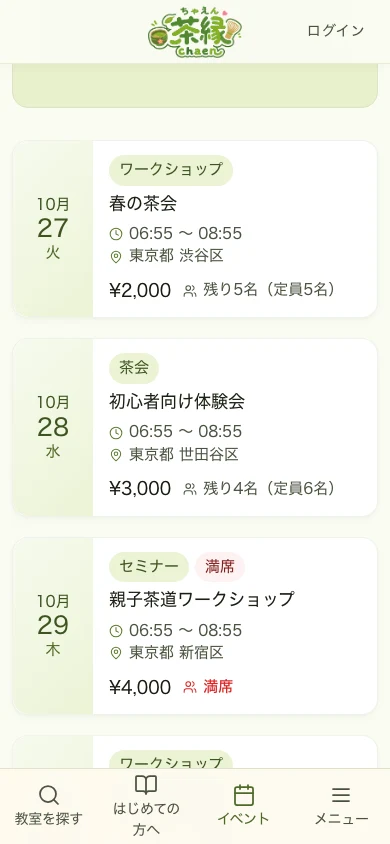
The event list lets you apply for tea gatherings and workshops. Tap an event you're interested in to see the details, then apply with the "Register" button (free events show "Register (free)").
- If spots are open, choose the number of attendees and register
- For paid events, choose "Pay by card now" or "Pay on-site" (for online events, "Pay the host classroom directly"; for events that need the classroom's approval, the card option reads "Pay by card" and you pay from the email sent after approval)
- At approval-required events your place is confirmed once the classroom approves; with no reply within 72 hours of applying (or by the start, if the event is sooner) the request is declined
- If an event is full, use "Join the waitlist" — we'll contact you by email and an in-site notice when a spot opens
- For online events, the join URL and passcode appear on the detail page
- Check your application status and any unpaid payments under "Upcoming events" in the dashboard
- Use "Cancel registration" to withdraw. If you stopped partway on the card payment screen, nothing has been charged: on the event page, use "Continue to payment", or switch to paying on the day if the event accepts it
- For paid events, you can view the receipt or a PDF
Write notes
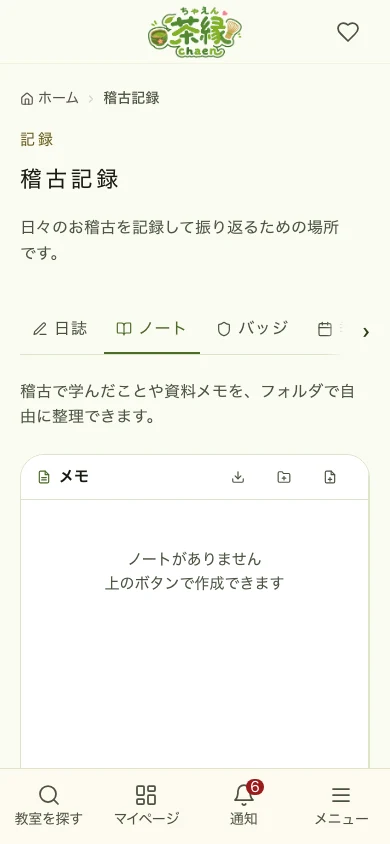
The practice log's study notes let you freely jot down what you've learned or noticed during lessons. Use it alongside your practice log.
- Choose a note from the list on the left and edit its content on the right
- On a smartphone, choosing a note from the list switches you to the edit screen
Read the blog
The blog has announcements from classrooms and articles about tea ceremony. You can also read a classroom's blog posts from its detail page.
Change your settings
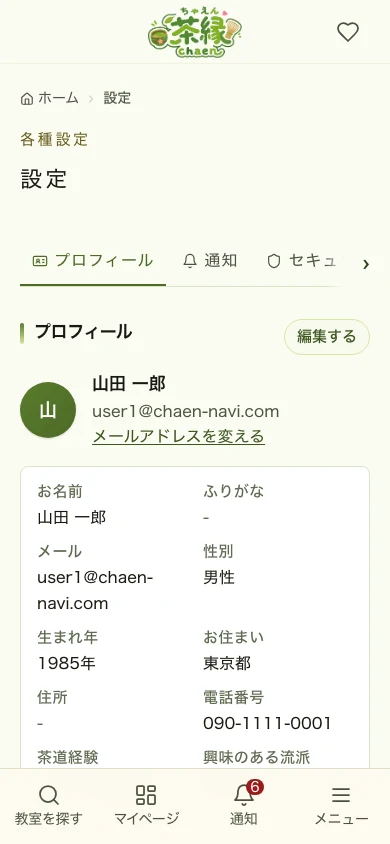
Settings lets you check and change everything related to your account.
- Profile — edit your name, contact info, tea ceremony experience, preferred school, and more
- Notifications — choose which email notifications you receive
- Security — change your email address or password, set up two-factor authentication, and review the sign-in methods linked to your account
- Enrolled classrooms — check the classrooms you've joined and any waitlists
- Calendar integration — check the settings for adding bookings to an external calendar
- Account — proceed to account deletion
If you forget your password
Tap "Forgot your password?" on the login screen.
- Enter your registered email address
- Tap the link in the email you receive
- Set a new password
If you want to start running a classroom
If you'd like to open your own classroom, you can register fromManage after logging in (enter your name and phone number and it's done on the spot). SeeFor classroom owners for details.
The screens covered here are only accessible after logging in.