
Here's a step-by-step walkthrough, with screenshots, of the process for booking a classroom. There are 8 steps in total.
Step 1: Find a classroom
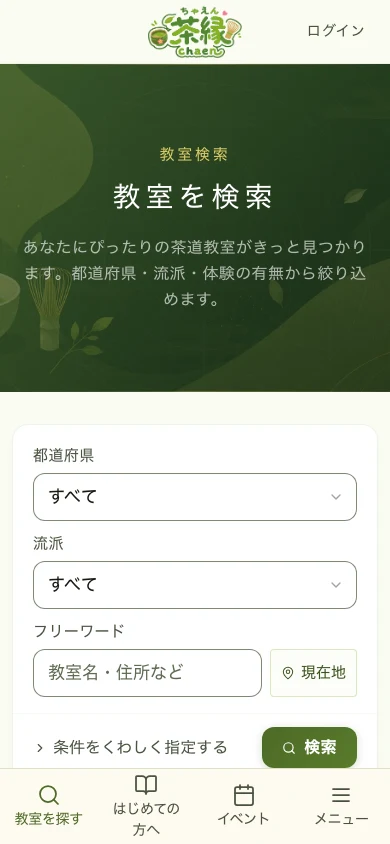
The classroom search screen has fields where you can enter your criteria.
- Choose the region you live in or can easily get to under "Prefecture"
- If you have a school in mind, choose it under "School"
- Press the green "Search" button
Step 2: Choose a classroom
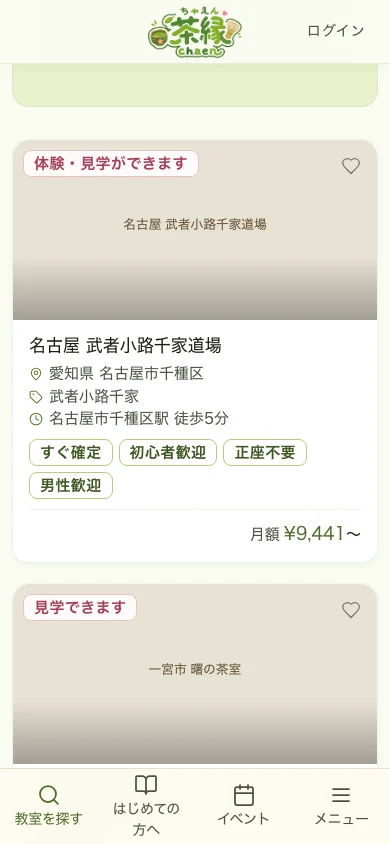
The search results are displayed. Tap a card for a classroom you're interested in to see more details.
Step 3: Check the classroom's details
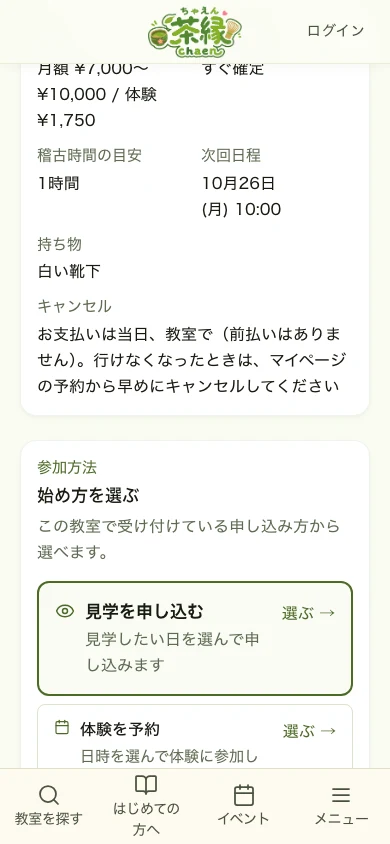
You can check the classroom's photos, location, school, and lesson content. The tabs at the top switch between "Details", "Schedule", "Pricing & enrollment", "Reviews", "Blog", and "Events". Once you've found a classroom you'd like to book, tap the option that fits your goal under"How to join" → "Choose how to start".
- If you're on a monthly plan with uses remaining this month, "Book with your monthly plan" appears
- To join a single session, tap "Book a regular lesson" or "Book"
- For a trial lesson, tap "Book a trial" and choose a date and time
- To look around first, tap "Apply for a visit"
- To check pricing first, tap "View pricing & enrollment"
Step 4: Log in (sign up first if you're new)
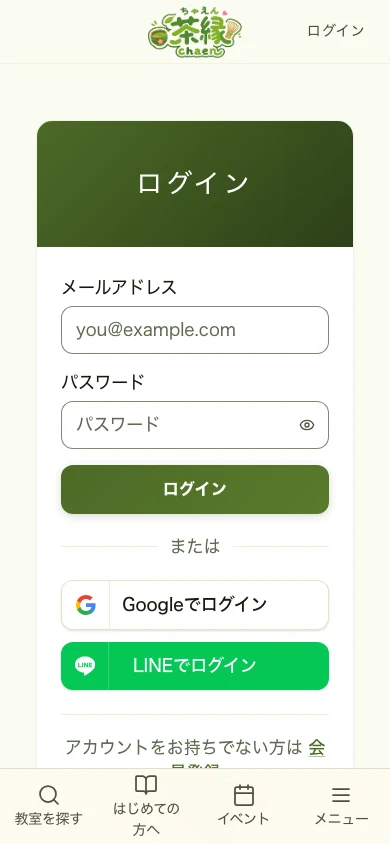
You need to be logged in to book.
- Enter your email and password and tap "Log in"
- IfGoogle or LINE buttons are shown, you can log in with those too
- If you're not a member yet, tap "Sign up" to register
Step 5: Choose a date and time
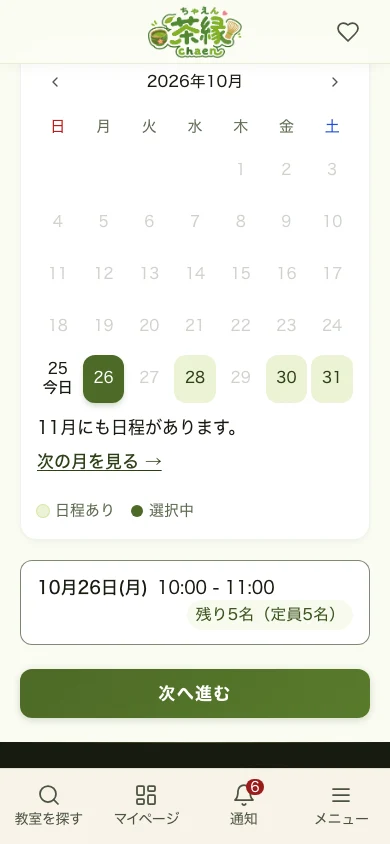
- Tap apale green day on the calendar (the legend below reads "Available" for pale green and "Selected" for dark green)
- Available times for that day appear below. Use "‹" and "›" to move between months
- Tap the time slot you'd like
- "Continue" button
Step 6: Enter booking details
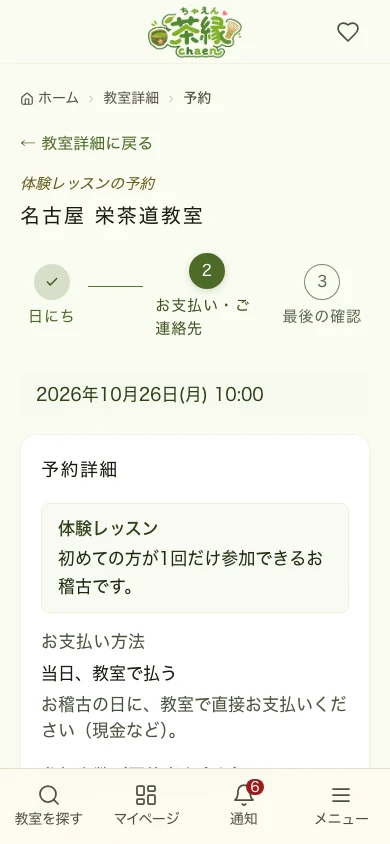
- Booking type: shows the type of this booking — trial, single session, monthly-plan booking, etc.
- Number of attendees (including companions): for a trial lesson you can apply together with family or friends, up to the classroom's trial capacity. Regular lessons are accepted for 1 person
- Payment method: the options — "Pay at the classroom on the day", "Pay by card now", "Use monthly plan", "Use lesson pass" — vary by classroom
- If a monthly plan is usable, "Use monthly plan" is selected automatically. You can switch to pay-per-session if needed
- If you hold a lesson pass, you can choose which one to use
- If you have a discount coupon, enter it under "Coupon code" and press "Apply"
- If you have companions, fields for their names appear. Any questionnaire the classroom set up is also answered here
- Anything you want to tell the classroom — what to bring, allergies — goes in "Requests / free text (optional)"
Once you're done, tap the"Continue to review" button. If a required questionnaire answer is missing, a message appears in red and you can't continue.
Step 7: Review and confirm your booking
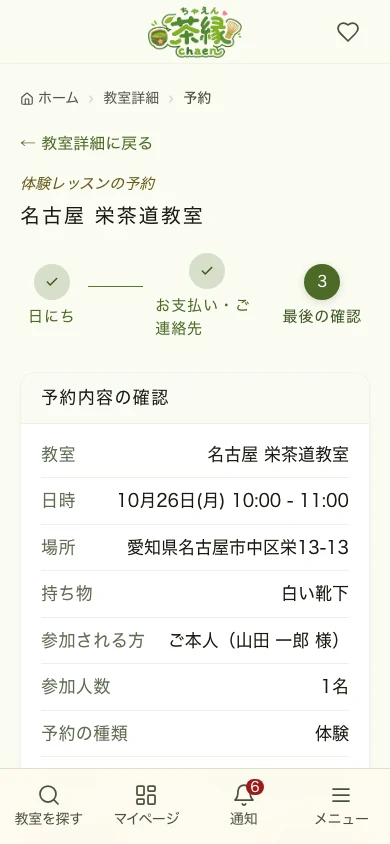
- Check that the classroom name, date/time, number of attendees, booking type, payment method, and amount are all correct
- If you answered a questionnaire, your answers are listed under "Questionnaire answers" — check them over
- Read the cancellation policy, then check the consent box
- For classrooms requiring approval, the button reads "Request booking" — your booking is confirmed once the classroom owner approves it
- At classrooms where the teacher confirms first, if you chose "Pay by card (after the teacher confirms)", you'll pay from the notice you receive after approval
- Tap the green "Confirm booking" button. If you chose "Pay by card now", the button reads "Continue to card payment" and takes you to the card screen
- If you stop partway on the card screen, nothing is charged. Back on the booking screen you can continue paying or cancel and choose again
Step 8: Booking complete
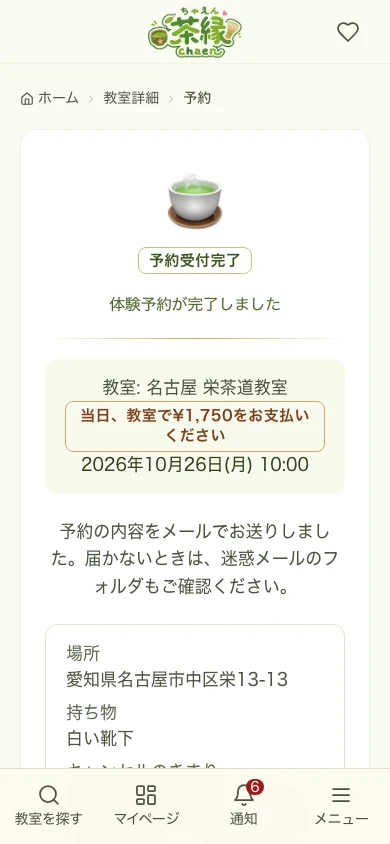
Once you see "Your trial booking is complete" or "Your booking is complete", your booking has been received. The screen lists the classroom name, date and time, and what to pay on the day.
- If you see "Your trial booking request has been received" or "Your booking request has been received", it isn't confirmed yet — this classroom requires approval, so please wait for the result
- If it says "Please pay … at the classroom on the day", pay at the classroom on the day. If it says "Payment status: awaiting payment", your card payment is still outstanding
- The dashboard — use the "Check booking status" button, or the tab bar at the bottom, to review your booking anytime
- A booking confirmation email is also sent — please check your spam folder just in case
- Use "Share this classroom" to pass it on via LINE, Facebook, X, or by copying the link
If you run into trouble
If something isn't working as expected, please feel free to reach out.